Home | Touch | UI
Actions Page
The Actions page, accessible via the lightning icon on the main toolbar, allows users to configure and manage automated action sequences and multi-command macros.
While individual widgets can execute standalone CMDNET commands directly, the Actions page enables users to package complex or multi-step command sequences into single reusable triggers.
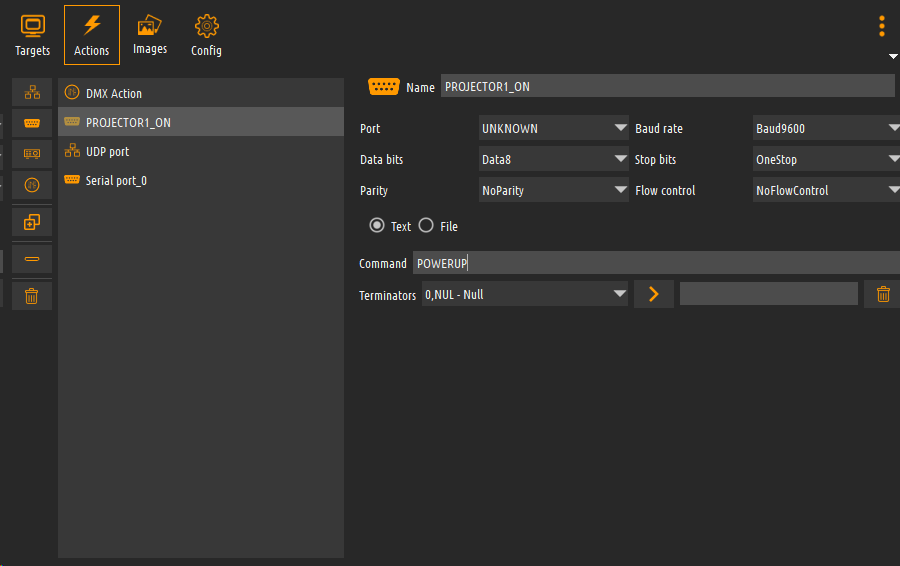
Layout Overview
The Actions interface is split into two primary functional areas:
| Area | Description |
|---|---|
| Actions List (Left pane) | Displays all currently defined actions and action management controls. |
| Action Configuration (Right pane) | Context-sensitive parameter editor for the currently selected action. |
Actions List Controls
The left panel includes a dedicated toolbar for managing action entries:
- Add (
+): Creates a new action entry in the list. - Remove (
-): Deletes the currently selected action. - Delete All (Trash icon): Removes all configured actions from the project.
Action Properties
When an action is selected from the list, the right pane displays its configurable properties:
- Action Name: A unique identifier for the action, used to reference it within the touch panel builder.
- Target: The receiver software instance configured on the Target Page (e.g.,
MY_IDPfor Immersive Display PRO). - Command: The CMDNET interface command to trigger on the selected target (e.g.,
SETDESKTOPWARPING,LOADPROCALIB,SETCONFIGSET). - Parameters: The specific arguments expected by the command (such as
ENABLE,DISABLE, or configuration preset IDs). - Sequence / Execution Delay: An optional delay (in milliseconds) before or between executing subsequent commands when building compound control routines.
Using Actions in Panel Builder
Once an action is defined on this page:
- Open the Builder interface from the web browser.
- Select or add a Button widget on the canvas.
- In the widget's Command property panel, set the target or action trigger to the defined action name.
- Save the panel. Pressing the button in the Viewer will execute the full command sequence.