Home | Touch
Quick Setup Guide
This quick setup guide shows a number of basic steps to setup the Immersive Touch Panels, and to define and use a touch panel to control a running instance of Immersive Display PRO.
- Start Immersive Display PRO and make sure that the CMDNET interface is enabled.
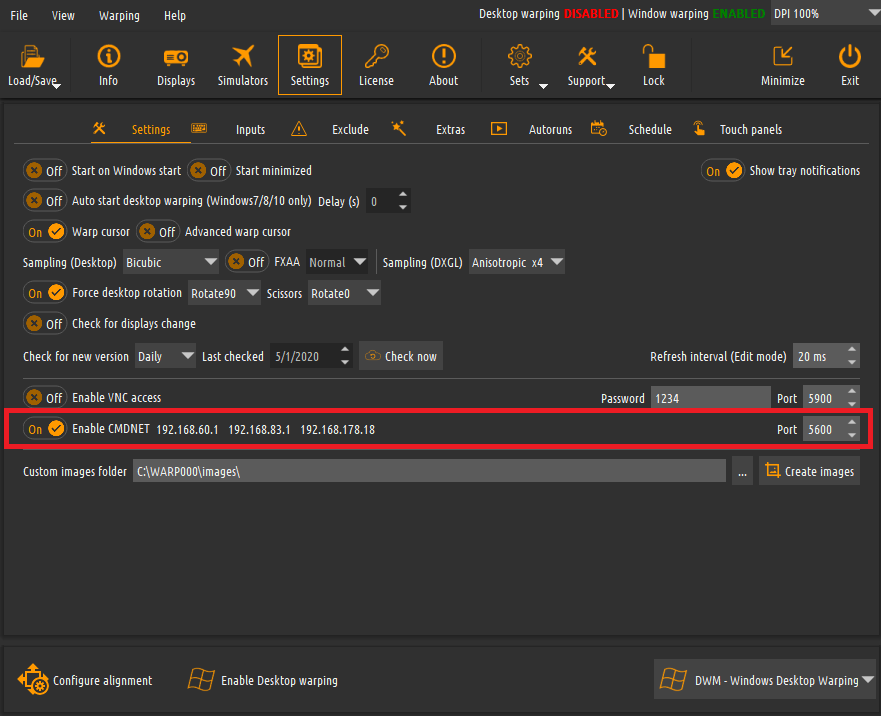
- Go to Touch panels tab and make sure the Touch panels interface is enabled. This will allow to connect to the software from a web browser to define or use a touch panel.
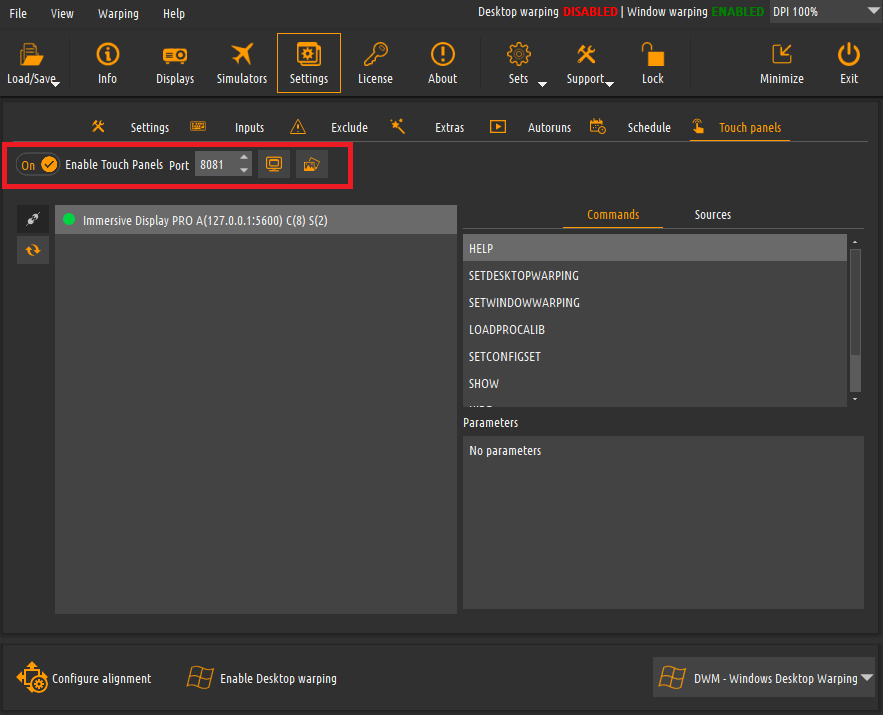
- The software will connect to the CMDNET interface and will show all available CMDNET commands and their parameters. The CMDNET interface supports “Commands” and “Sources”. The commands go from the touch panel to the software to change its state. The sources are status information going from the software to the touch panel.
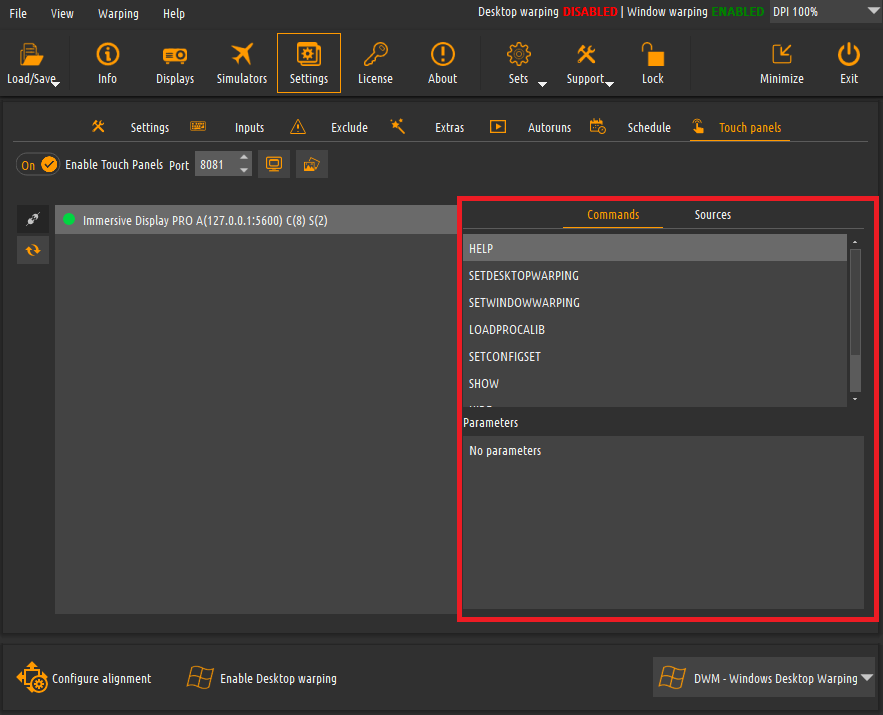
- Now start a web browser on a PC or any other HTML enabled device.
- Connect the HTTP interface provided by the Immersive Touch Panels software. In our case
192.168.178.18:8081. - A web page will open that lists the available defined panels. Click on the top left menu and select the Builder screen.
- This will open an interactive Panel designer to define your touch panel.
- Click on the New button to create a new Panel. The panel builder screen will open to define or edit the panel.
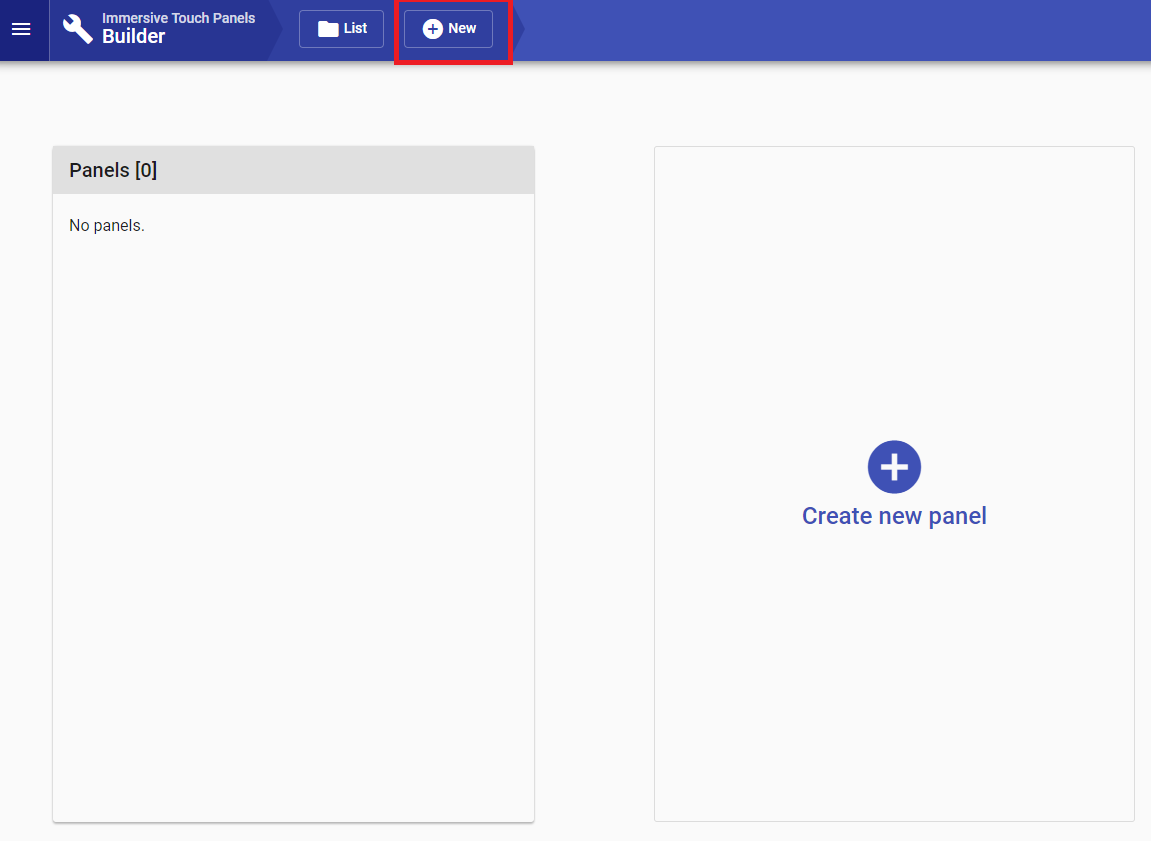
- Click on the “panel” in the widgets list to open the panel properties and define the panel width and height to match your touch device screen resolution. Define the desired panel color, set the descriptive panel name and press save.
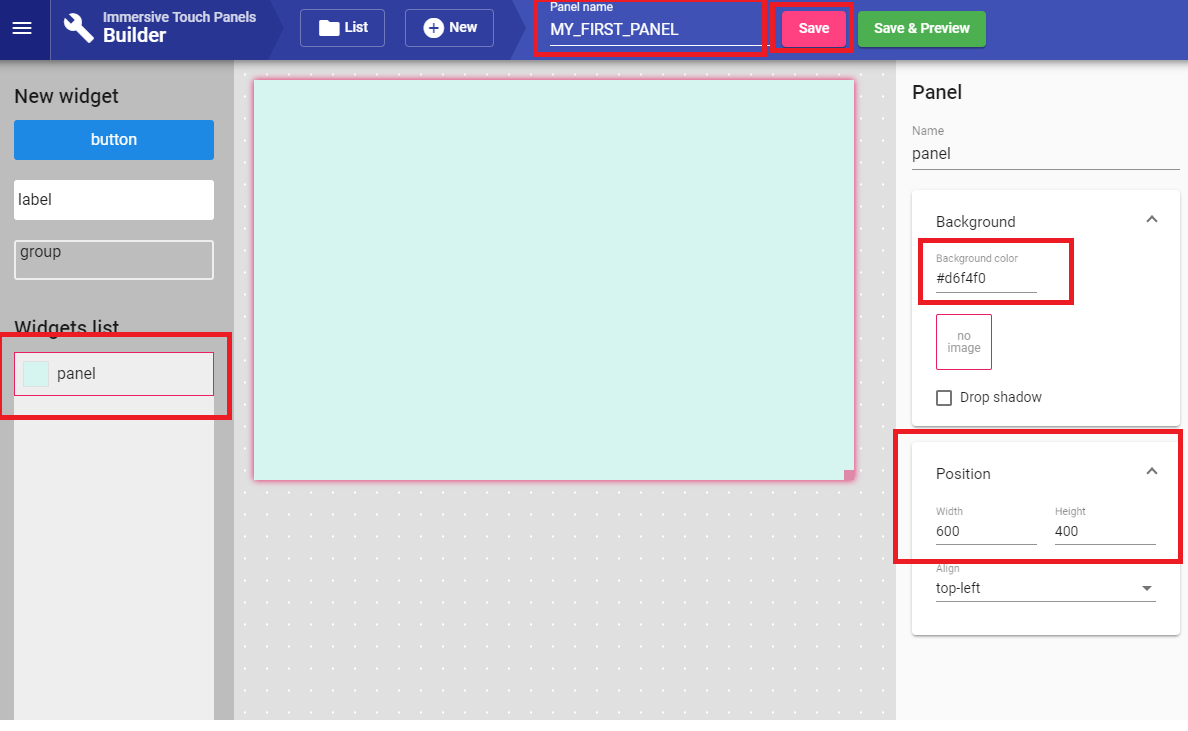
- The panel is created and ready to be used. But first let’s define the buttons and commands that we can use with those buttons.
-
Drag and drop 2 buttons widgets on the panel and drag and drop 2 labels widget. Move, position and resize the widgets as you prefer. Click on each button separately and widget properties: names, background color, text color, etc.
-
Now for each button we will define the command to be executed on the available targets defined in Immersive Touch Panels. In the Command properties for the button, select our defined target
MY_IDP, select the commandSETDESKTOPWARPINGand type the value of the argument “warping” toENABLE. - Repeat the same for the disableButton, but in the command parameter type
DISABLE. Now our button will be able to send commands to our running Immersive Display PRO software to enable and disable the desktop warping. - Now, select the labeStatus. This label will show the status of the desktop warping, which is available as a “source” from our running Immersive Display PRO. Whenever the warping status will change, the value of the label will be changed accordingly. Enable the “Dynamic text“ property of the label, and select the
GETDESKTOPWARPINGsource from outMY_IDPtarget.
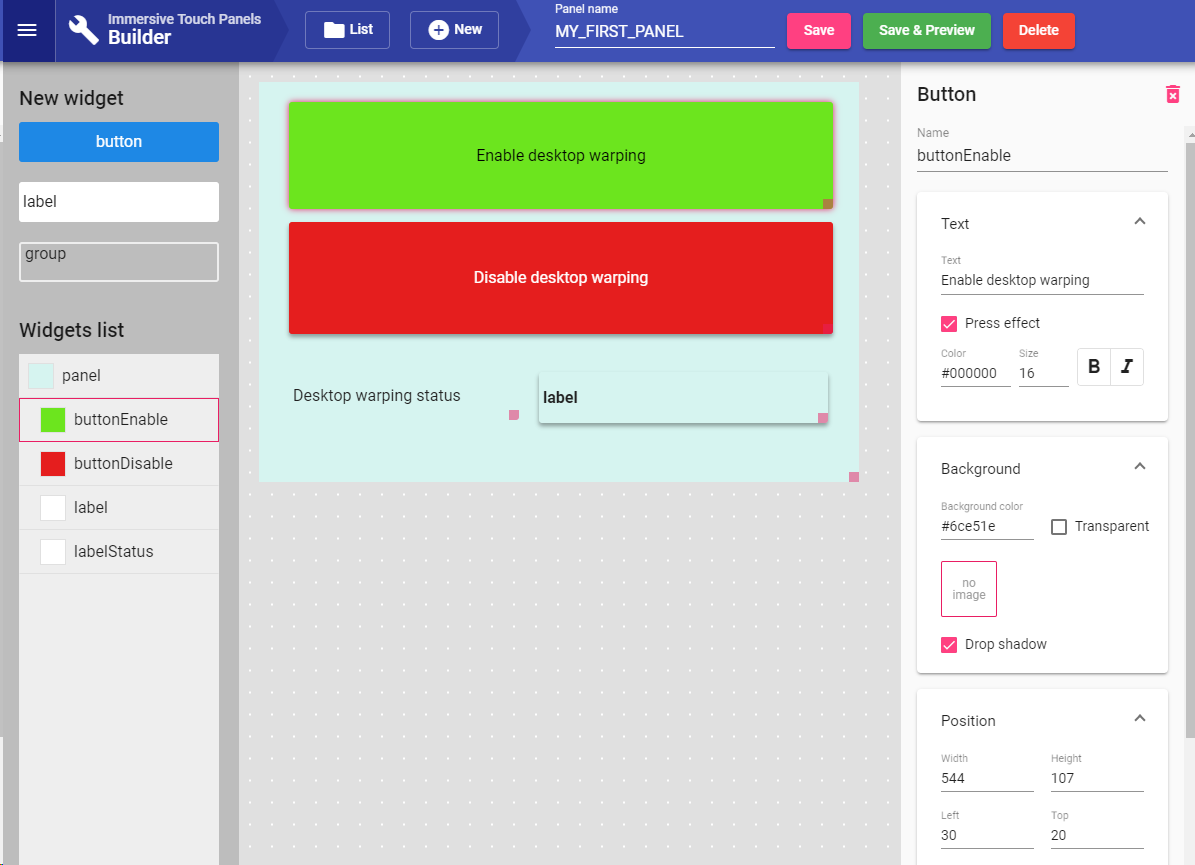
- That is all. Our panel is ready to be used. Press Save and go the Viewer section using the top left menu button.
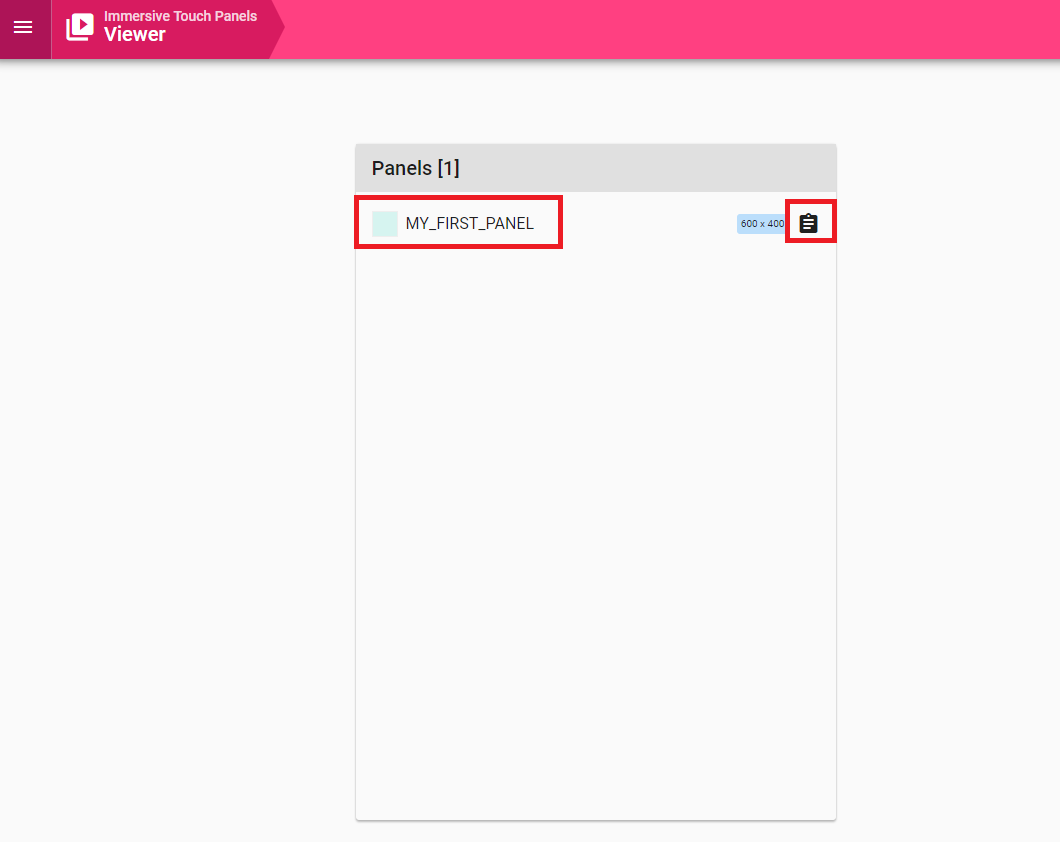
- Our panel is ready to be used. Clicking on the panel name will open the running panel. The URL of the panel can be copied to the clipboard using the “Copy“ button on the right of the panel name.
- Here we are. Our Panel is opened in our browser and we can click on the buttons to change the state of the desktop warping.
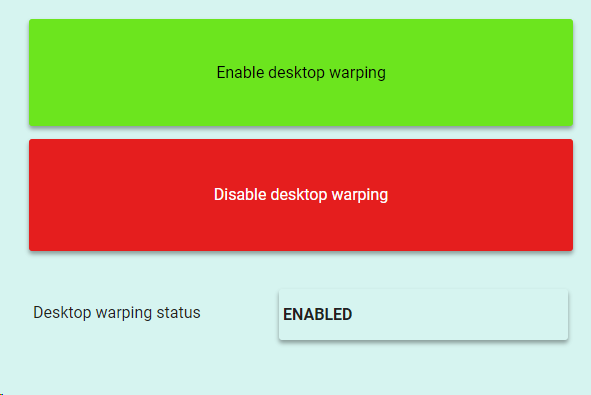
- Use any device with screen and a browser to access our panel using the URL:
http://<ipaddress>:<port>/#/viewer/panel/MY_FIRST_PANEL- Example:
http://192.168.178.18:8081/#/viewer/panel/MY_FIRST_PANEL
- Example: