Home | Display | Warping & Edge blend
Warping & Soft-Edge Blending Configuration
Entering the alignment interface (F3 or Configure alignment) opens the interactive warping and soft-edge blending window across all configured projectors.
Editing Modes
- Geometrical Correction Mode : Displays green control points across the screen. Move these points to reshape the projected matrix and correct for screen curvature or projector tilt.
- Simple Soft-Edge Blending Mode : Displays red control points along overlapping boundaries. Drag these points horizontally or vertically to scale the blend zone along the projector's edge.
- Advanced Soft-Edge Blending Mode : Displays blue control points along the overlap region. Allows independent movement of multiple blend vertices to handle non-linear curved overlaps.
Advanced Configuration Dialog (D Key)
Press D on the keyboard to open the multi-tab floating Advanced Configuration Dialog. Press C to center the dialog on the active projector.
1. Geometry Tab
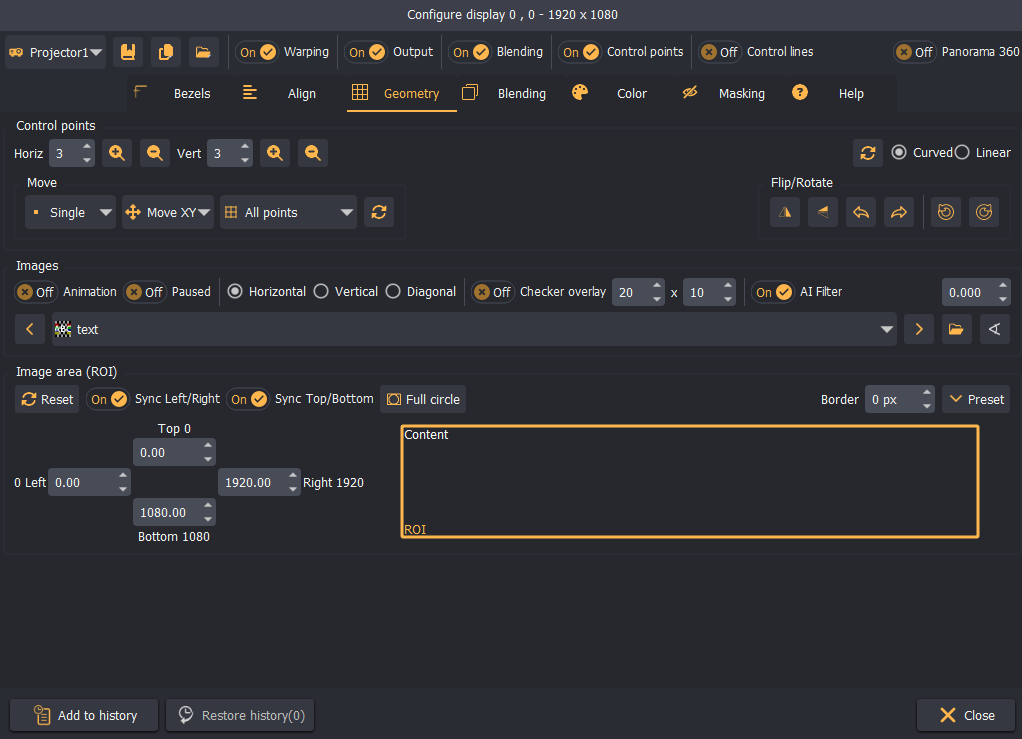
- Mesh Density: Configure the number of horizontal and vertical control points (up to 50x50). Use the
+/-buttons orF5/F6(horizontal) andF7/F8(vertical) to double or halve point density. - Interpolation Curve: Select between Curved (smooth spline interpolation) and Linear (straight polygonal interpolation).
- Constraint Controls: Restrict vertex movement to horizontal (
Move X), vertical (Move Y), or unconstrained (Move XY). - Edge Only Interpolation: Move only outer boundary points while the software automatically calculates and interpolates inner grid positions.
- Test Patterns & Backgrounds: Load built-in grids, checker overlays (with configurable horizontal/vertical cell counts), text markers, or custom image files from the designated Images folder.
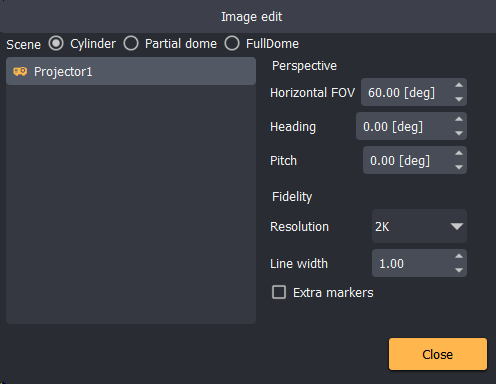
- Perspective Background Generator: Generate perspective test patterns mapped to virtual cylinder, partial dome, or full dome projection surfaces, complete with horizontal FOV, heading, pitch, and angular degree markers.
2. Blending Tab
Soft-edge blending smooths overlapping projector boundaries to eliminate bright seams.
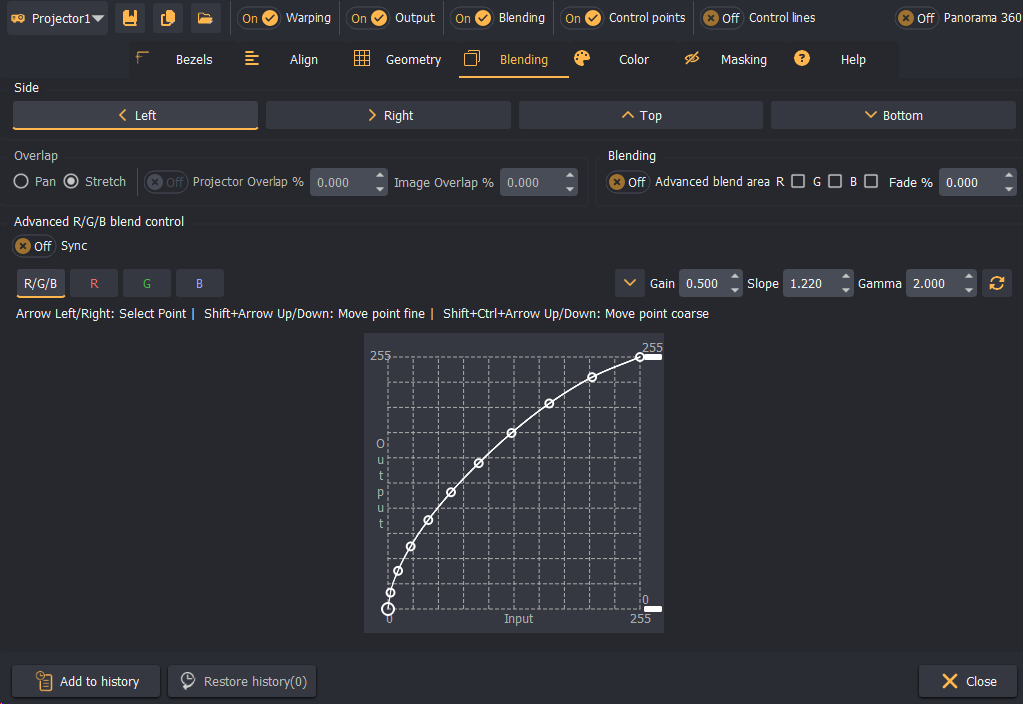
- Overlap Modes:
- Pan: Shifts the projection content inwards. Preserves the original aspect ratio but crops a portion of the overlapping edge.
- Stretch: Compresses the image horizontally or vertically. Preserves the entire field of view, but introduces minor aspect ratio changes across the overlap.
- Projector Overlap %: Sets the precise overlap percentage between adjacent projectors. The adjacent projector is automatically updated to match.
- Fade Curve Configuration:
- Parametric Formula: Adjusts the blend ramp using three values: Gain, Slope, and Gamma.
- Manual Spline: Divides the blend zone into 10 discrete draggable control points to shape custom transition ramps.
- Independent Color Blend: Set custom blend curves for individual Red, Green, and Blue channels to correct for color balance shifts in projector light engines.
3. Masking Tab
Masking cuts out unwanted projector light spill (e.g., beyond the screen border or over a cockpit dashboard):
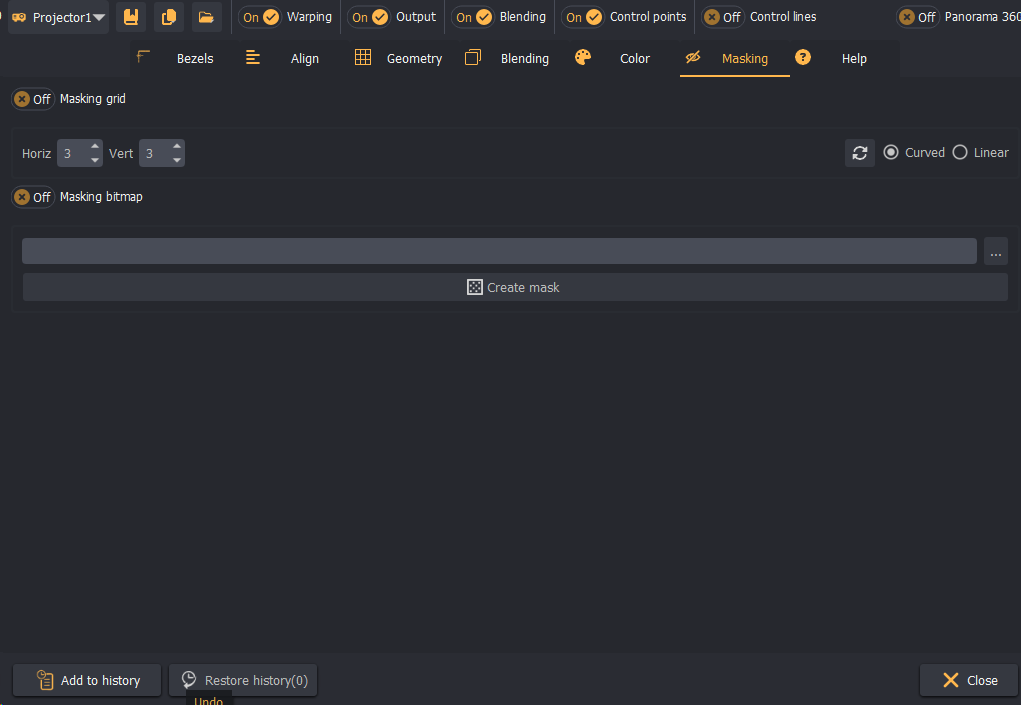
- Masking Grid: An interactive bezier/linear polygonal grid adjusted by control points.
- Masking Bitmap: Loads an offline 1-bit or 24-bit black-and-white
.bmpor.pngimage. Pixels painted pure black (#000000) are fully masked out of the projection.
4. Color Correction Tab
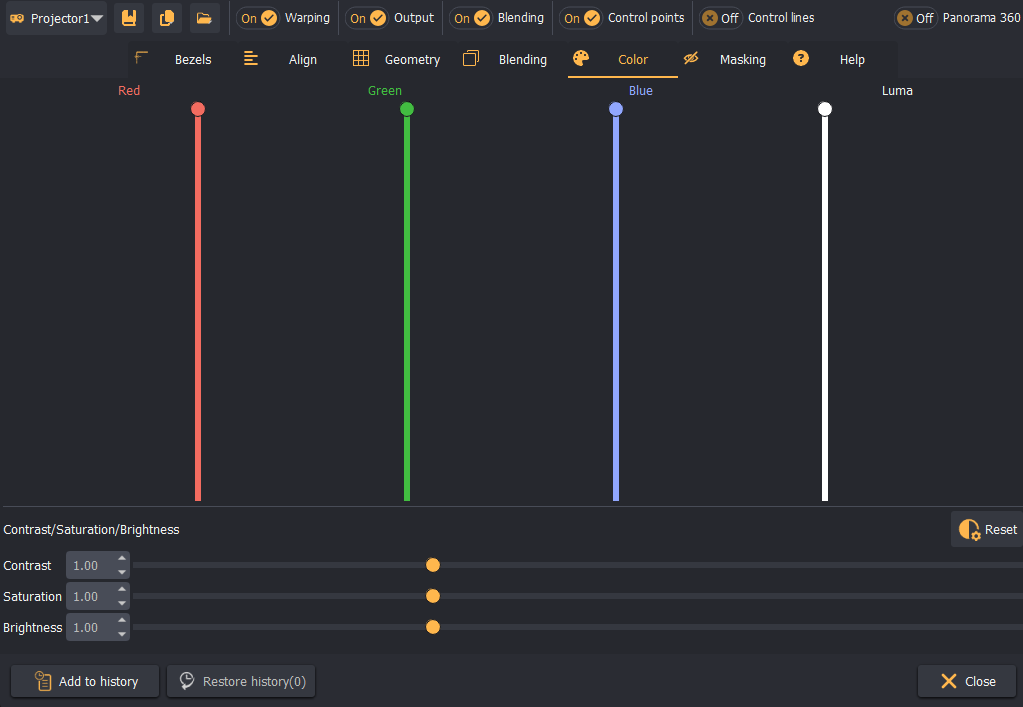
The Color Balancing tab allows to fine-tune and match the color profiles of individual projectors across your display setup. By adjusting parameters such as white balance and RGB gain, user can eliminate subtle color discrepancies and achieve seamless visual uniformity across the entire blended canvas.
5. Align Tab (Automap)
The Align tab simplifies manual alignment on curved screens by using edge markers:
- Select the Colors background pattern.
- Align the outer boundary points of the align grid to the physical screen edges.
- Position the intermediate align grid points so they line up with the physical overlap boundaries cast by adjacent projectors.
- Click Automap. Immersive Display PRO will calculate the inverse geometric correction, projector overlap, and blend ramps automatically.
6. Bezel Correction Tab
For tiled video walls or multi-panel flat displays, the Bezel Correction tab offsets hidden pixels behind panel borders. Enter edge bezel loss percentages independently for Left, Right, Top, and Bottom margins. Standard geometric warping is bypassed when Bezel Correction is active.