Home | Display
Quick Setup Workflow
Assign Projectors: On the Displays tab, click your detected display and choose the projector layout (e.g., 3x1, 2x2, or External calibration).
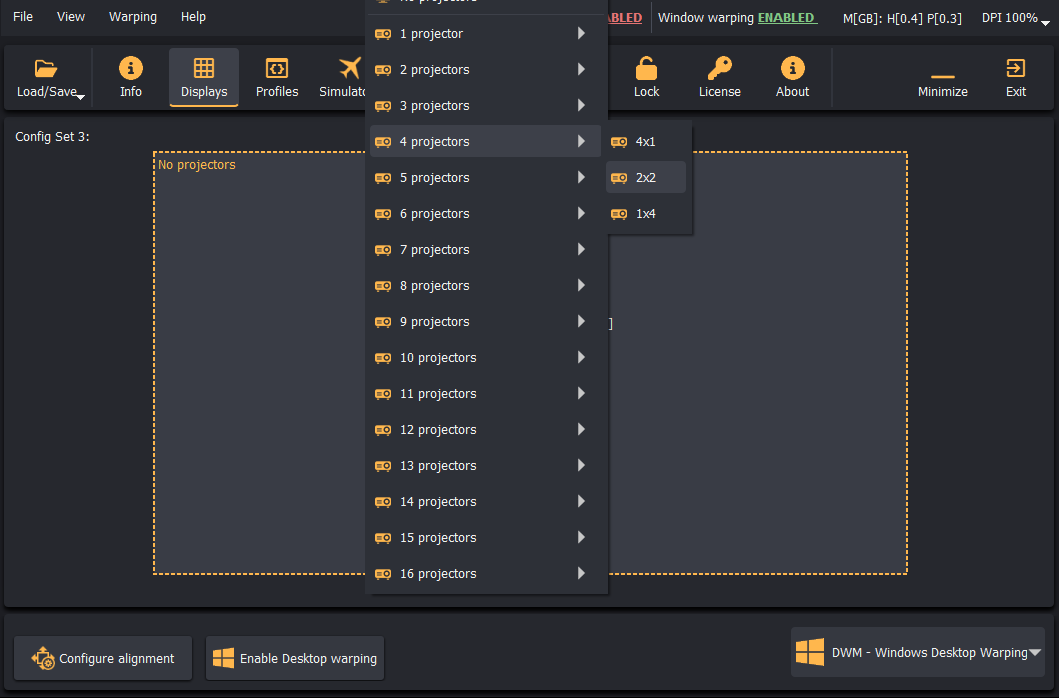
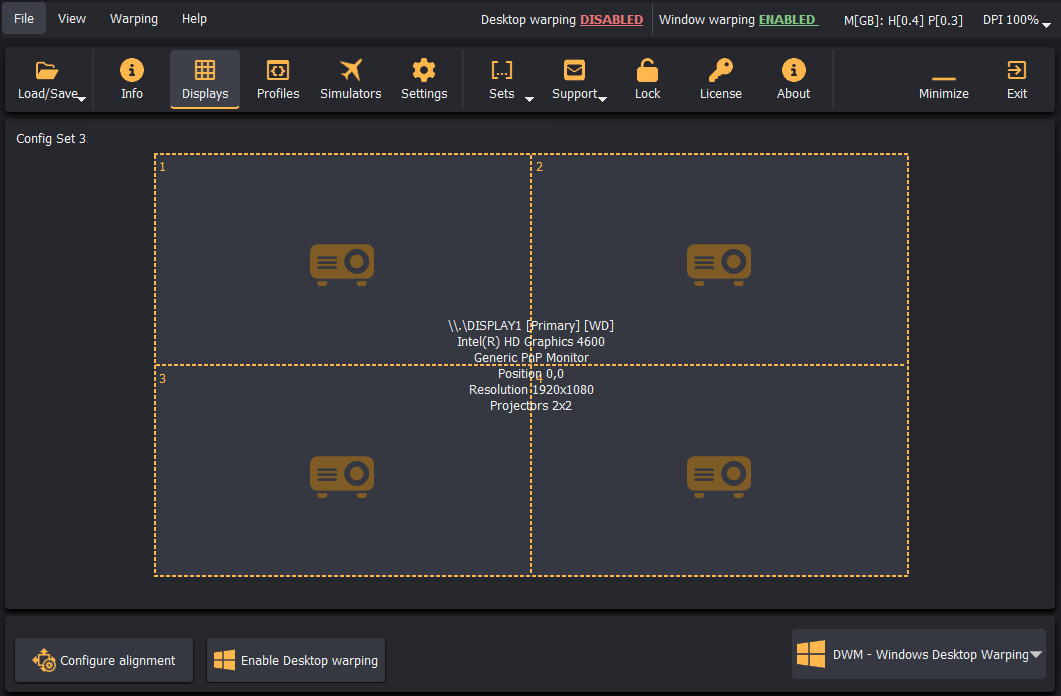
Launch Alignment: Click Configure alignment (or press F3) to enter the full-screen interactive calibration window.
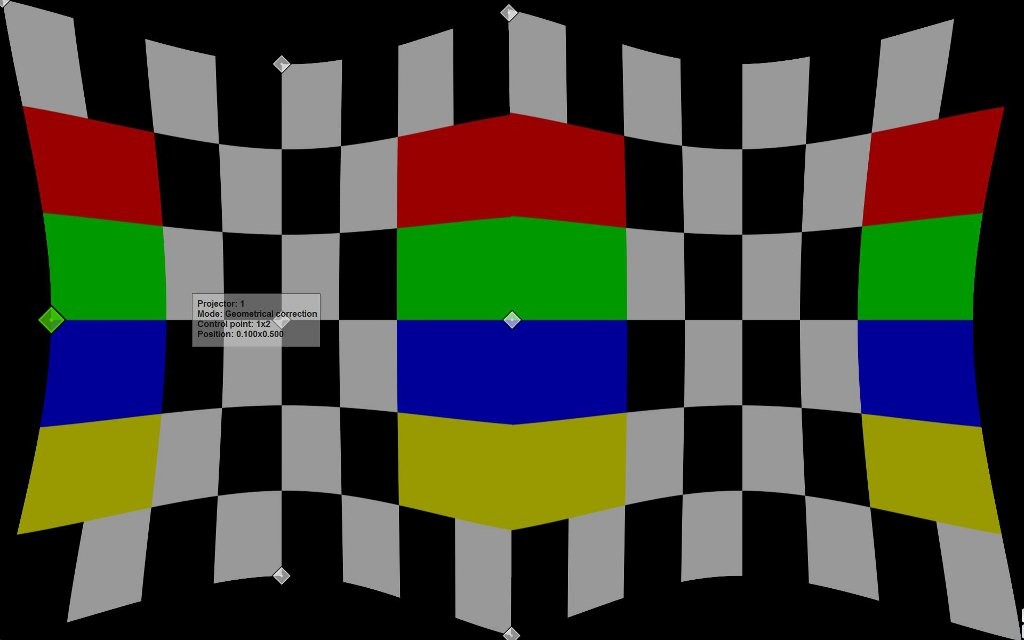
Geometric Correction: Drag the green grid control points until the projection fits the screen curvature without geometric distortion.
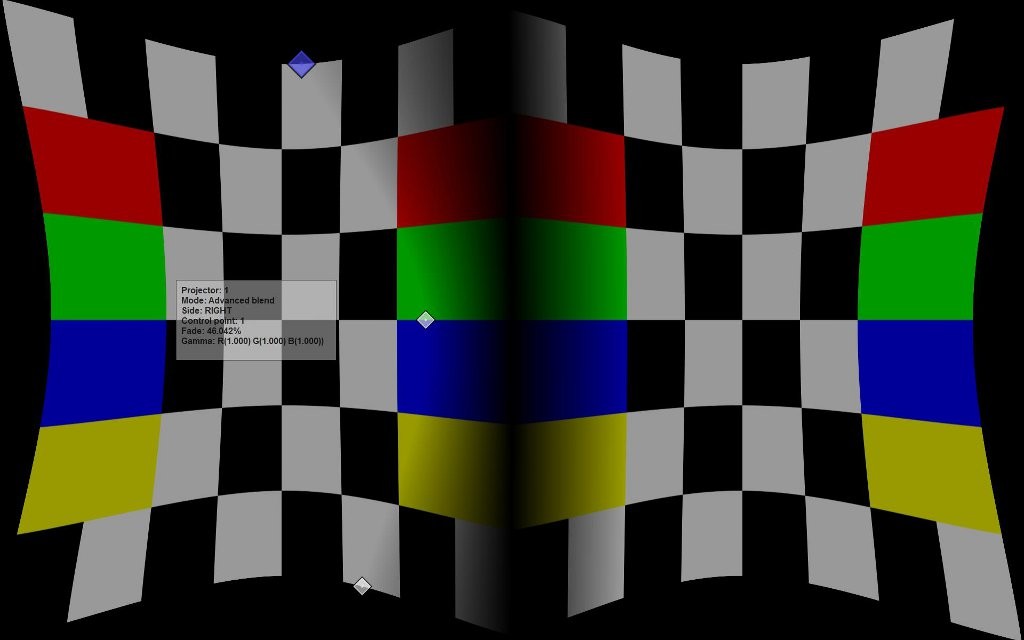
Edge Blending: Press F10 to switch to Edge Blending mode. Drag the red control points on the overlapping boundaries to calibrate the blend overlap and fade ramp.
Exit and Commit: Press Esc to exit calibration. Click Load/Save to persist the configuration to disk.
Enable Warping: Click Enable Desktop warping on the bottom status bar to apply corrections globally across the Windows environment.