Home | Display | Settings
General settings
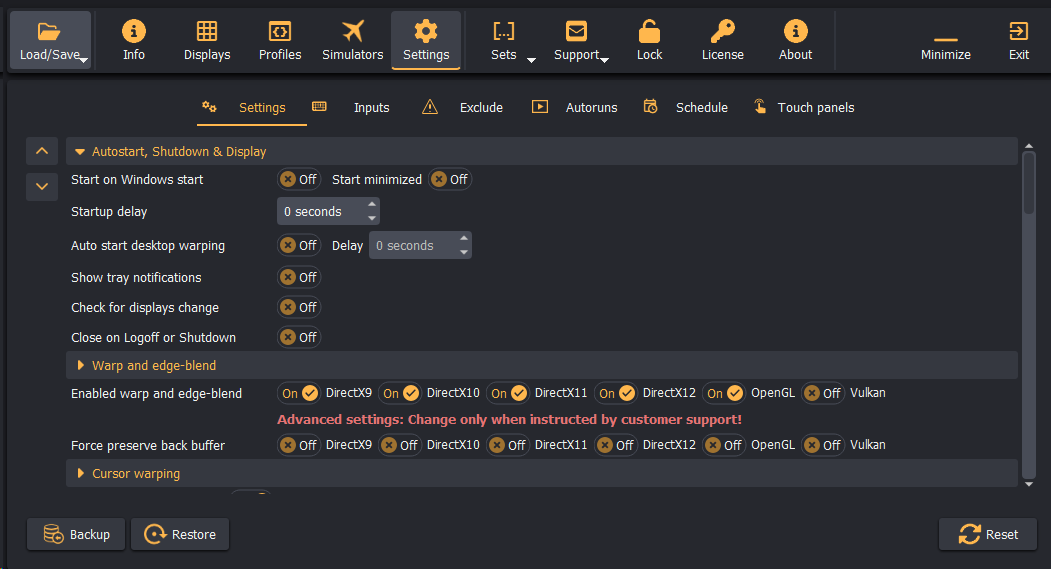
Autostart and Desktop Warping
- Start on Windows start: Registers the application in the Windows startup folder/registry.
- Start minimized: Launches the application directly to the system notification tray without displaying the main GUI.
- Startup delay: Adds an initial delay (in seconds) to allow graphics drivers, network adapters, and spanning hardware to finish initializing before the application starts.
- Auto start desktop warping: Automatically activates desktop warping on system boot.
Graphic Engine Hooking & Tweaks
- Cursor Warping & Advanced Warp Cursor: Corrects mouse cursor position and scale across warped non-planar surfaces. The advanced mode uses low-level cursor virtualization to ensure compatibility across fullscreen games.
- Bi-cubic Sampling (Desktop & 3D APIs): Replaces linear filtering with bi-cubic texture filtering to preserve text legibility and fine edge detail across sharp warp curves.
- Anisotropic Filtering: Offers up to 16x anisotropic filtering to minimize blur when projecting at steep oblique angles.
- Force Preserve Back Buffer: Required for select simulation engines that reuse their back buffer after frame presentation.
- Enable De-banding: Applies a temporal dither algorithm over fade curves to smooth out gradient steps on displays with limited bit depth.
Application Inclusions & Exclusions
Use the Exclude/Include tab to control which applications receive warping hooks:
- Include all except EXCLUDES: Global hook mode; prevents specified executable names from being warped (e.g., custom instrument panel utilities or streaming software).
- Exclude all except INCLUDES: Whitelist mode; limits warping exclusively to designated executable filenames.
Web Touch Panels
The Touch Panels feature allows operators to control Immersive Display PRO from a tablet, smartphone, or secondary browser over standard HTTP.
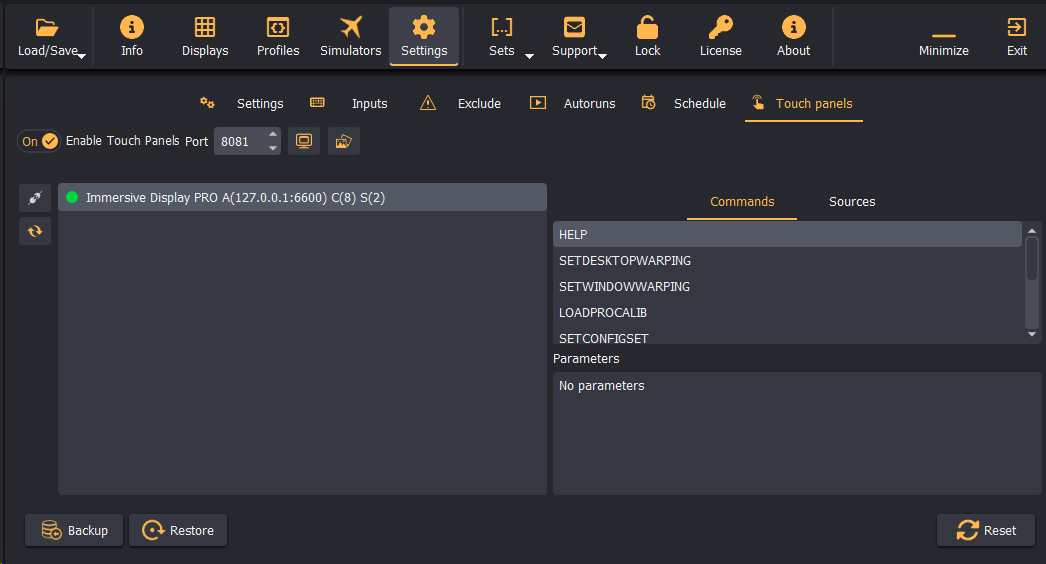
- Enable the touch panel service and assign an HTTP port (default:
8081). - Point any browser on the local network to
http://<PC_IP_ADDRESS>:8081to display touch buttons for toggling warping modes, loading configuration sets, running blackout commands, and switching head poses.
Configuration Locking
To prevent unauthorized adjustments or accidental input when simulators run in public kiosks or unattended training facilities, lock the configuration:
- Click the Lock button on the top navigation bar.
- Enter a master lock password and select Apply.
- The interface becomes read-only: projector grid configurations cannot be modified, and calibration windows cannot be opened without entering the password.