Home | Display | Simulators
Fly Elise-ng AI Based Frame Interpolation
Frame Interpolation
Fly Elise-ng adds a seamless integration of frame interpolation for any game engine based on DirectX, OpenGL or Vulkan. It does NOT require motion vectors or any other motion flow information from the game engine.
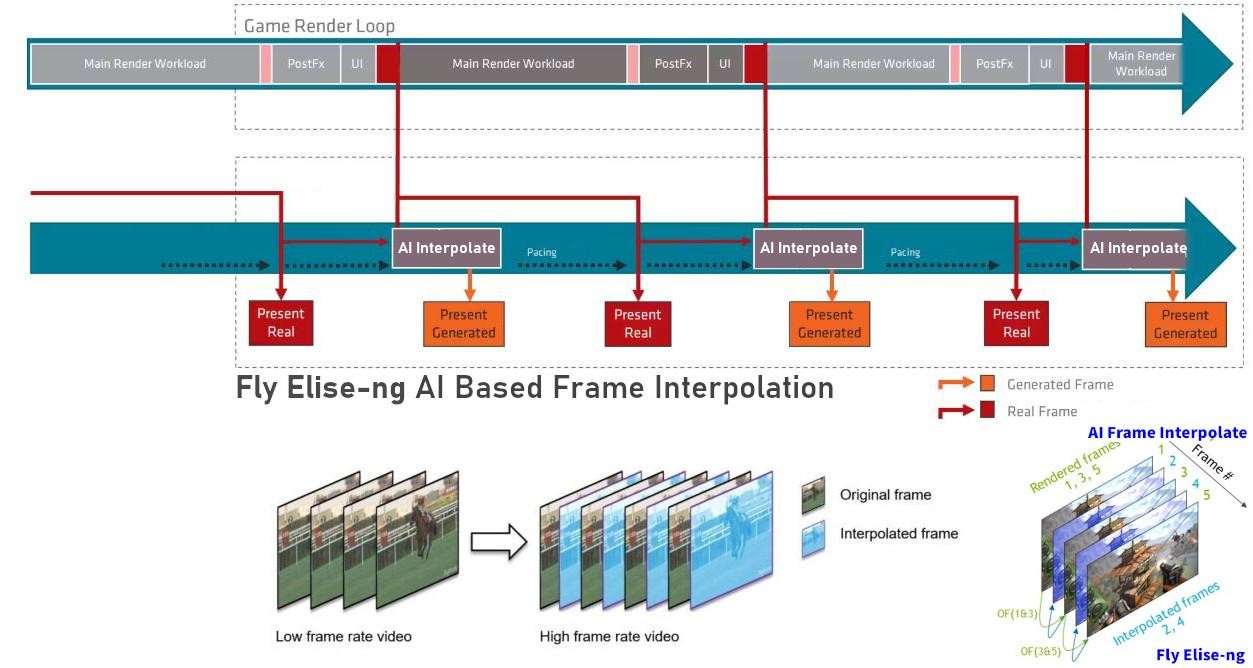
Fly Elise-ng frame interpolation is based on a set of novel, highly optimized AI-trained algorithms executed on the GPU between each frame generated by the game engine. This effectively doubles the output frame rate (2 x FPS) while allowing the game engine to spend more time in processing and generating the game frames.
Frame interpolation takes only a fraction of the time needed to process and render the game frame. On a typical setup with 60 Hz displays, the game engine has a deadline of 16 ms to prepare and render each frame.
Our frame interpolation algorithms take between 0.5 and 3 ms per frame on the GPU, thus allowing the game engine to spend double the time per frame.
Just limit the application frame rate and increase rendering quality in the game. The game can render at 30 FPS, and for each game frame we will generate an interpolated frame and ensure both the real game frame and the interpolated frame are paced and presented with 60 FPS.
Another use case is ignoring the VSync and simply doubling the game frame rate. Let the game render as many frames as possible (unlimited FPS) and for each game frame we will generate an interpolated frame and ensure both the real game frame and the interpolated frame are paced and presented with 2 x FPS.
Frame interpolation can be enabled and configured per game, using the Immersive Display PRO - Ultimate or Immersive LCD PRO - Advanced Profile settings.
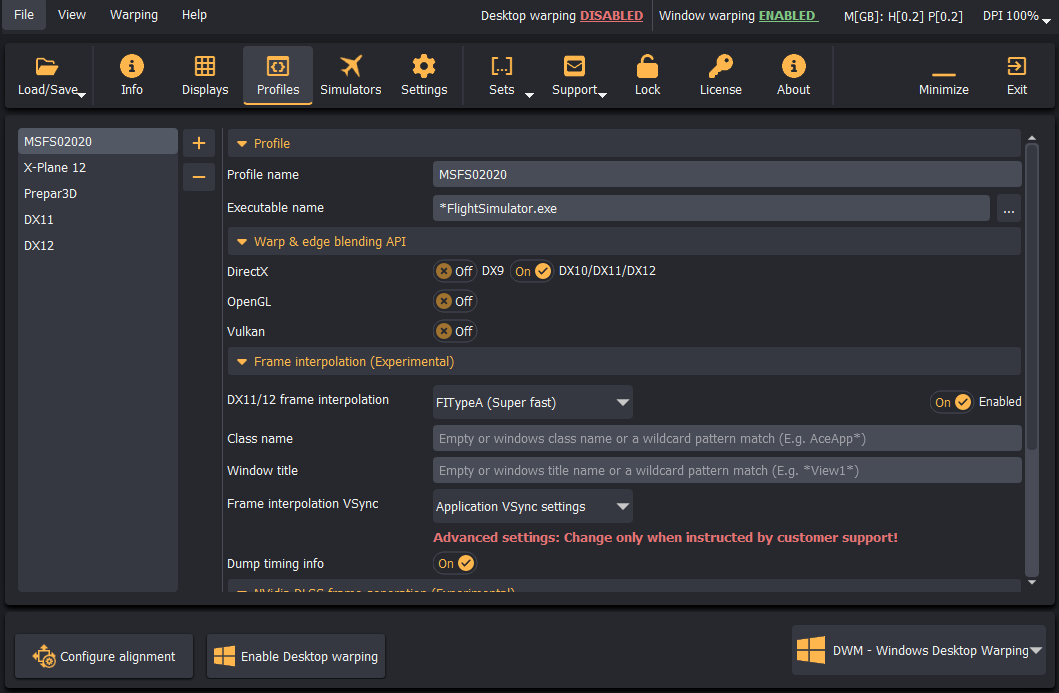
Two frame interpolation algorithms are available: FITypeA (Super fast) and FITypeB (Super accurate) with a simple tradeoff between speed and fidelity.
In some specific cases the interpolation can be limited to a specific application window based on the windows class name or window captions. Those can be defined using full explicit names or using the wildcards * and ?. They can match any or exactly one character. For most of the cases, the windows class and title names can be left empty.
The VSync settings determine the maximum frame rate of the game and interpolated frames. The available options are Application VSync settings, VSync On and VSync Off.
- When application-defined vSync is On or Frame Interpolation VSync is On, then the total frame rate (real + interpolated) is limited to the connected display refresh rate. In case of 60 Hz displays, the application will render 30 frames per second and the frame interpolation will insert additional 30 frames per second.
- In cases when the VSync is off, then the application frame rate is unbounded. In such a case, frame interpolation will again generate a new frame for each application frame and by this doubling the total frame rate.
Frame interpolation can be temporarily enabled or disabled using the Enable toggle.
Examples
Microsoft Flight Simulator MSFS2020
Microsoft Flight Simulator is based on the DirectX 11 or DirectX 12 (experimental) rendering pipeline. Frame interpolation can be enabled for both DirectX 11 and 12 modes and in both single view mode (2D Surround) and multi-view mode ungrouped displays mode.
Configuration Steps
- Start MSFS2020 and limit MSFS2020 frame generation to 50% of the supported display frame rate. Keep the VSync On.
- Create a profile for MSFS in Immersive Display PRO.
- In the Executable name field enter
*FlightSimulator.exe(do not forget the*). This will ensure that FlightSimulator.exe from any system path will be used for frame interpolation, for both standalone or Steam based installations. - Leave the VSync to "Application defined VSync" and Enabled to True.
- Select one of the available frame interpolations FITypeA or FITypeB. Start with FITypeA (fastest) and if some GUI artifacts are observed, try FITypeB.
After MSFS2020 is started it will report the game FPS of max 30 frames per second. However, output sent to the GPU (shown by Display PRO frame timing graph) is doubled to max 60 FPS. The main thread can spend up to 30 ms per frame while the output is generated every 16 ms with one game frame and one interpolated frame.
Prepar3D
Prepar3D is based on the DirectX 12 rendering pipeline. Frame interpolation can be enabled in both single view mode (2D Surround) and multi-view mode (ViewGroups).
Configuration Steps
- Start P3D and configure the P3D target frame rate to 30 FPS and keep the VSync On.
- Create a profile for P3D in Immersive Display PRO.
- In the Executable name field enter
*Prepar3D.exe(do not forget the*). This will ensure that Prepar3D.exe from any system path will be used for frame interpolation. - Leave the VSync to "Application defined VSync" and Enabled to True.
- Select one of the available frame interpolations FITypeA or FITypeB. Start with FITypeA (fastest) and if some GUI artifacts are observed, try FITypeB.
After Prepar3D is started it will report the game FPS of max 30 frames per second. However, output sent to the GPU (shown by Display PRO frame timing graph) is doubled to max 60 FPS.
X-Plane 11/12
Both X-Plane 11 and X-Plane 12 are based on the Vulkan rendering pipeline. Optionally, X-Plane 11 can be configured to use the OpenGL rendering pipeline. Frame interpolation can only be applied on the DXGI based rendering pipeline used by DX11 and DX12.
Fortunately, the recent NVidia drivers and control panel allow configuring Vulkan/OpenGL based software to use the DXGI layer for presentation. This makes it possible to apply frame generation to all Vulkan and OpenGL based game engines.
NVIDIA Control Panel Setup
- Open the NVidia Control Panel.
- Create a profile for X-Plane.
- At the bottom of the settings select "Prefer layered on DXGI Swapchain" for Vulkan/OpenGL present method.
- Apply the settings and exit the NVidia Control Panel.
Configuration Steps
- Start X-Plane and configure the graphics settings. Keep the Use VSync option On.
- Create a profile for X-Plane in Immersive Display PRO.
- In the Executable name field enter
*X-Plane.exe(do not forget the*). This will ensure that X-Plane.exe from any system path will be used for frame interpolation. - Leave the VSync to "Application defined VSync" and Enabled to True.
- Select one of the available frame interpolations FITypeA or FITypeB. Start with FITypeA (fastest) and if some GUI artifacts are observed, try FITypeB.
Important
In the profile Warp and edge blend API make sure that Vulkan and OpenGL are disabled and only DirecX10/11/12 is enabled. This will ensure that DXGI will be used for presentation and frame interpolation.
After X-Plane is started it will report the game FPS of max 30 frames per second. However, output sent to the GPU (shown by Display PRO frame timing graph) is doubled to max 60 FPS.
User Guide
Download and check Frame Interpolation User Guide.