Home | Display
Displays
The Displays tab provides visual mapping, identification, and assignment of physical projectors to graphics outputs recognized by the Windows OS.
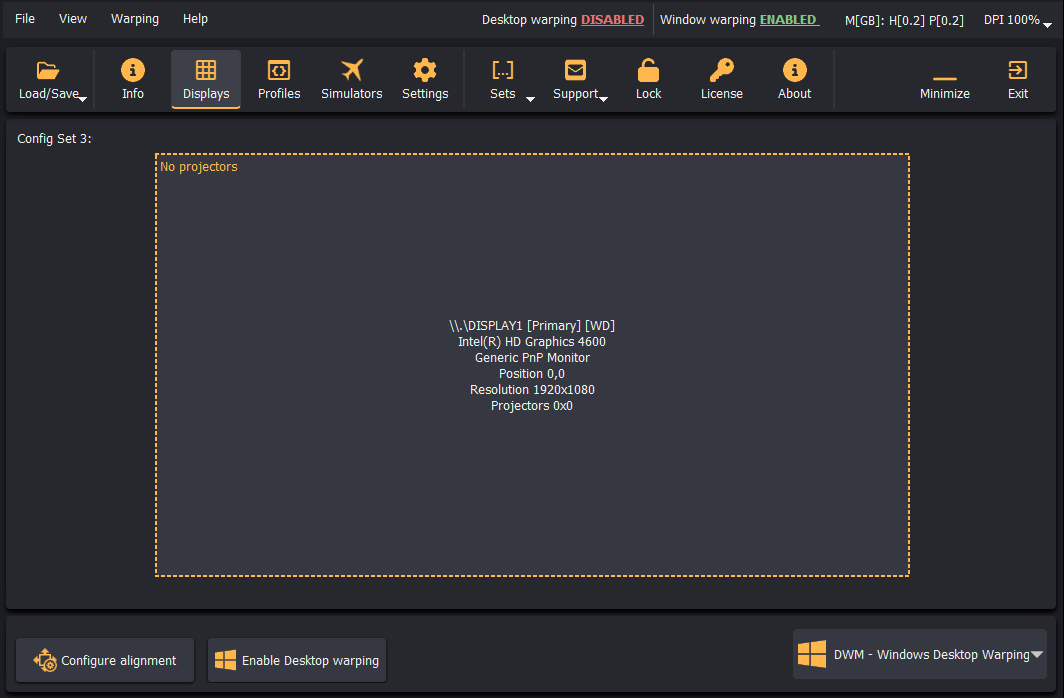
Display Detection and Layout Setup
When Immersive Display PRO launches, it polls the operating system display subsystem and displays a block for each connected monitor or spanned desktop surface. Each block details:
- Windows display name (e.g.,
\\.\DISPLAY1) - Attached GPU device name
- Native pixel resolution and virtual desktop origin coordinates (
Position X,Y) - Current projector assignment
Configuring Projector Topologies
Clicking on a display card opens a drop-down menu with valid layout configurations:
- None: Disables projector processing on this display.
- Grid Topologies (1 to 16 Projectors): Select any horizontal and vertical matrix configuration (e.g.,
1x1,2x1,3x1,4x1,2x2,3x2, up to 16 outputs). - External Calibration (
.procalib): Automatically imports geometric meshes and blending curves generated by Fly Elise-ng Immersive Calibration PRO.
Hardware Reliability & Pinning
Handling Display Enumeration Changes
Windows may occasionally reorder display monitor indices (e.g., after driver updates, cable reconnections, or power cycling). Immersive Display PRO provides two mechanisms to safeguard settings:
- Check for Display Changes: Enable this in Settings > Autostart, Shutdown & Display. If Windows alters the enumeration or order of screens, the affected display blocks are highlighted in red. Right-click the block and select Select loaded display to re-link the original mapping.
- Pin to GPU Connector: For NVIDIA and AMD/ATI graphics cards, the software uses low-level driver APIs to query the physical output connector identifier (e.g.,
NV|GeForce RTX... | G1|3|1|0).
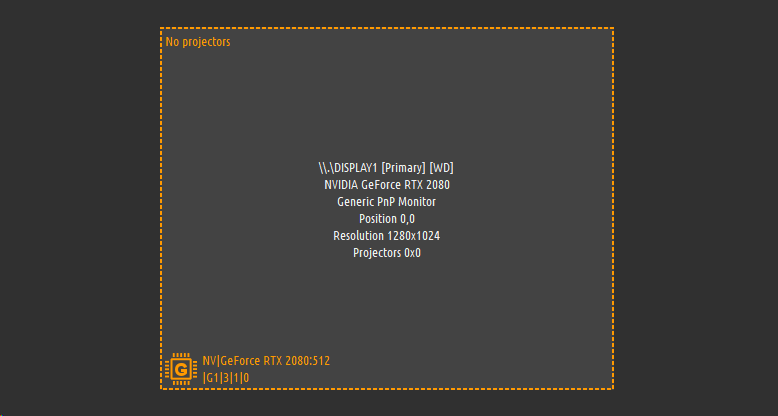
- Right-click the display and select Pin to GPU Connector.
- Once pinned, a microchip icon appears in the bottom-left corner of the display block. Immersive Display PRO will always bind that projector configuration to that specific physical GPU port, regardless of how Windows assigns virtual indices.