Home | Designer | UI
3D viewport
The 3D viewport shows the complete projection environment: the projection screen, the projector frustums and their projected images, any imported 3D models (for example a cockpit), and environmental elements.
Mouse interaction
Use the mouse to interact with the scene:
| Action | Description | Mouse |
|---|---|---|
| Rotate | Orbit the view around the scene. | Left-click |
| Pan | Move the view around the scene. | Right-click |
| Zoom | Zoom in or out on the scene view. | Wheel |
| Select | Select the scene object under the mouse cursor. | SHIFT + Left-click |
Cube view
A Cube View is an additional navigation help to quickly change the views or the view perspective. The cube view can be shown or hidden using the show menu. The cube is shown in the top right corner of the 3D View area.
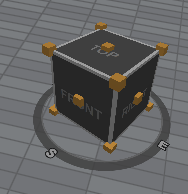
Whenever the user rotates the 3D view area the cube view will follow and will represent the orientation. User can also use the Left mouse button to rotate the cube view. The cube has regions on each side and each corner. Using the right mouse button and clicking on one of the regions will automatically set the 3D view area to view the scene from the chosen direction.
Selecting and editing elements
Select an element (screen, projector, camera, or object) in the 3D viewport to show its properties into the configuration panel. All modifications made in the panel are applied live to the 3D scene.
When selecting an object, a 3D manipulation GUI is shown for interactive object position and rotation in the 3D scene.
Real-time feedback
Every change you make to the scene — moving a projector, resizing the screen, or placing a blocking object — is immediately reflected in the viewport, including the resulting shadows and projection coverage on the screen.