Home | Designer | UI
3D objects manipulation
Each element of the projection can be freely positioned and rotated in the 3D scene. Each 3D object has a move and rotate control to facilitate and optionally constrain the position and the orientation of the elements in the projection environment.
Position and orientation can be changed either by entering the position values or orientation values in the corresponding boxes or using the mouse and changing the position and orientation in the 3D View area.
Position/Rotation GUI
When entering the position and rotation values in the move and rotate control, the element is always translated and rotated with respect to the scene world coordinate system positioned in the center of the scene.
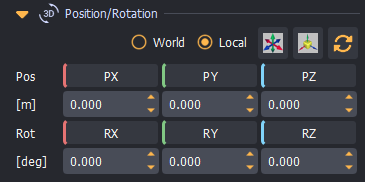
By pressing the PX, PY, PZ or RX, RY, RZ buttons a dialog box will be opened to enter the relative movement or rotation with respect to the current position and orientation. The relative adjustments can be performed in the local or in the world coordinate system.
The rotation is always performed after the translation in the following rotation axis order: Rotate around X, rotate around Y and rotate around Z.
User can use the move and constrain menu buttons to constrain or limit the movement in a certain axis or plane and to constrain the rotation around a particular axis.
Using the move constrain menu, the movement can be enabled along all axes, can be limited to a particular axis or a plane constructed by two axes. The movement of the element can be also be completely locked to disable all movements.
Using the rotation constrain menu, the rotation can be enabled around all axes, or limited to a particular axis. The rotation of the element can be also be locked to completely disable rotation of the element.
The translation and rotation can be performed in the element local coordinate system or in the scene world coordinate system. One can use the World/Local checkbox to choose the coordinate system for translation and rotation.
Position/Rotation Gizmo
Positioning and rotation can also be done interactively in the 3D View area using our advanced Move/Rotate/Pivot/Target Gizmo. By holding the SHIFT button the user can click on an element using the Left mouse button. This will make the element selected and ready for interactive movement and rotation.
The selected elements are represented with a yellow bounding box and the Local or the Global coordinate system axes are drawn for a reference.
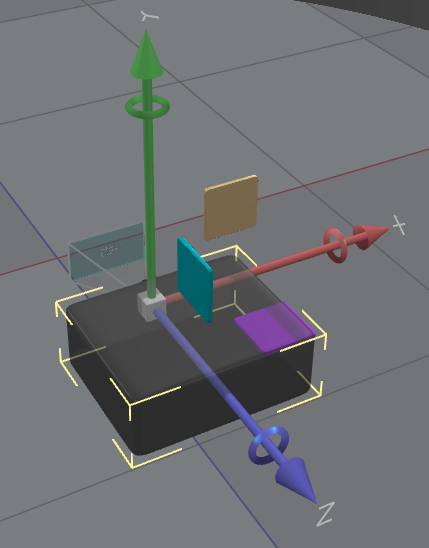
The Gizmo contains the following interaction elements:
- Axis arrows (for movement and pivot per axis)
- Axis rings (for rotation around the axis),
- XY, XZ and YZ planes (for movement in that plane) and the origin Cube (for free movement).
The following interactive movement actions are available:
- Use the Left mouse button to grab and drag any axis. The element will move along the axis only.
- Use the Left mouse button to grab and drag any axis ring. The element will rotate around that axis only.
- Use the Left mouse button to grab and drag any of the XY, XZ, YZ planes. The element will move in that plane only.
- Use the Left mouse button to grab and drag the cube in the center of the coordinate system. The element will move freely in any direction.
Additionally, for projectors, when the Projector Target option is selected, the projector target can be grabbed and moved on any surface. The Gizmo axis can be used to hover the projector around the target point.
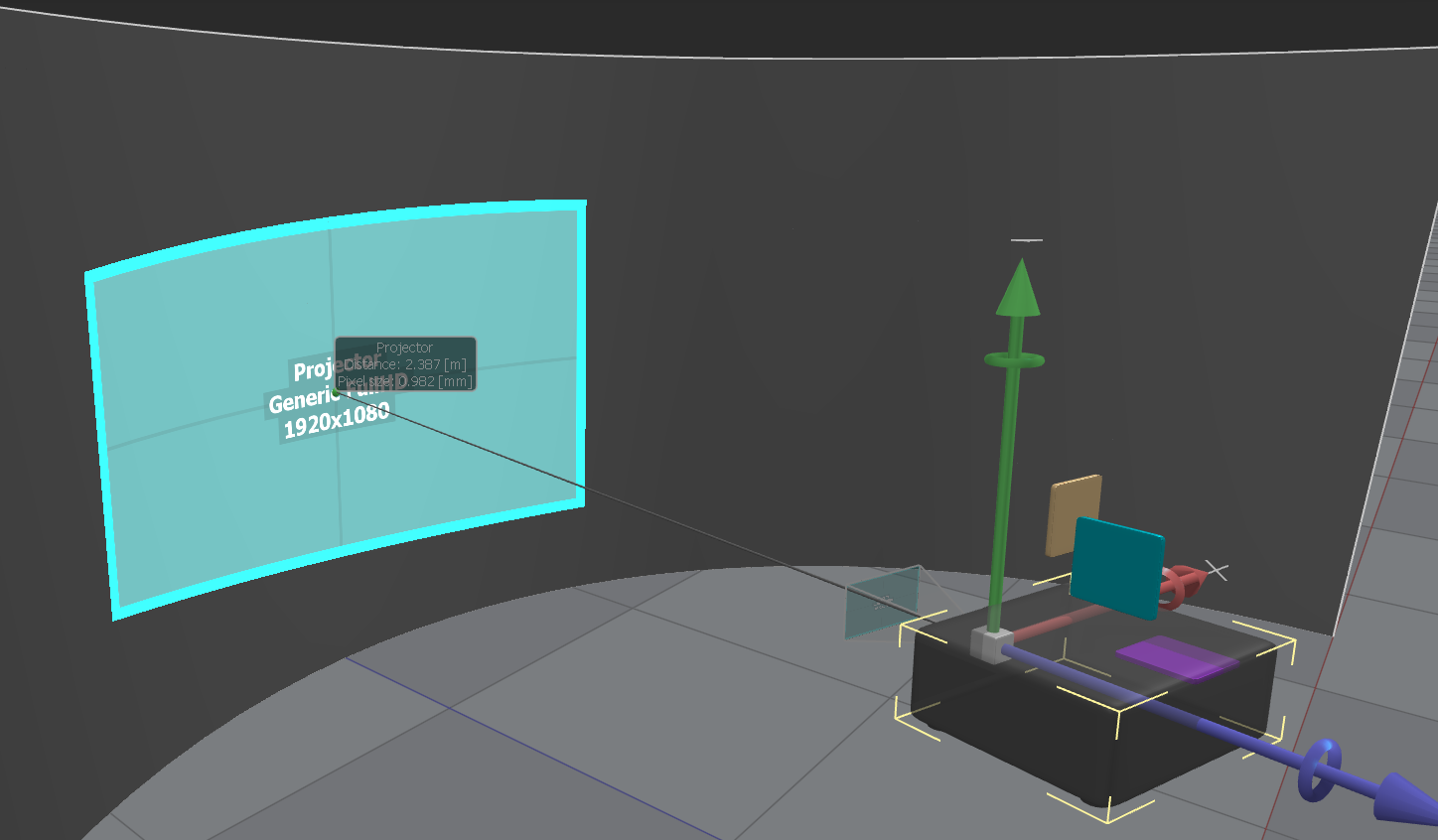
The following interactive movement actions are available only for projectors when the projector “Target” is enabled.
- Use the Right mouse button to grab and drag the green target point. The projector orientation will follow the projector target point.
- Use the Right mouse button to grab and drag any of the X or Y axis. The projector will pivot around the projector target point. The target point will not change; only the projector's position and orientation will.