Home | Designer | Projectors
Projector rigs
Projector rigs let you create multiple projectors in one step. This is the fastest way to build linear or circular rigs without placing every projector manually.
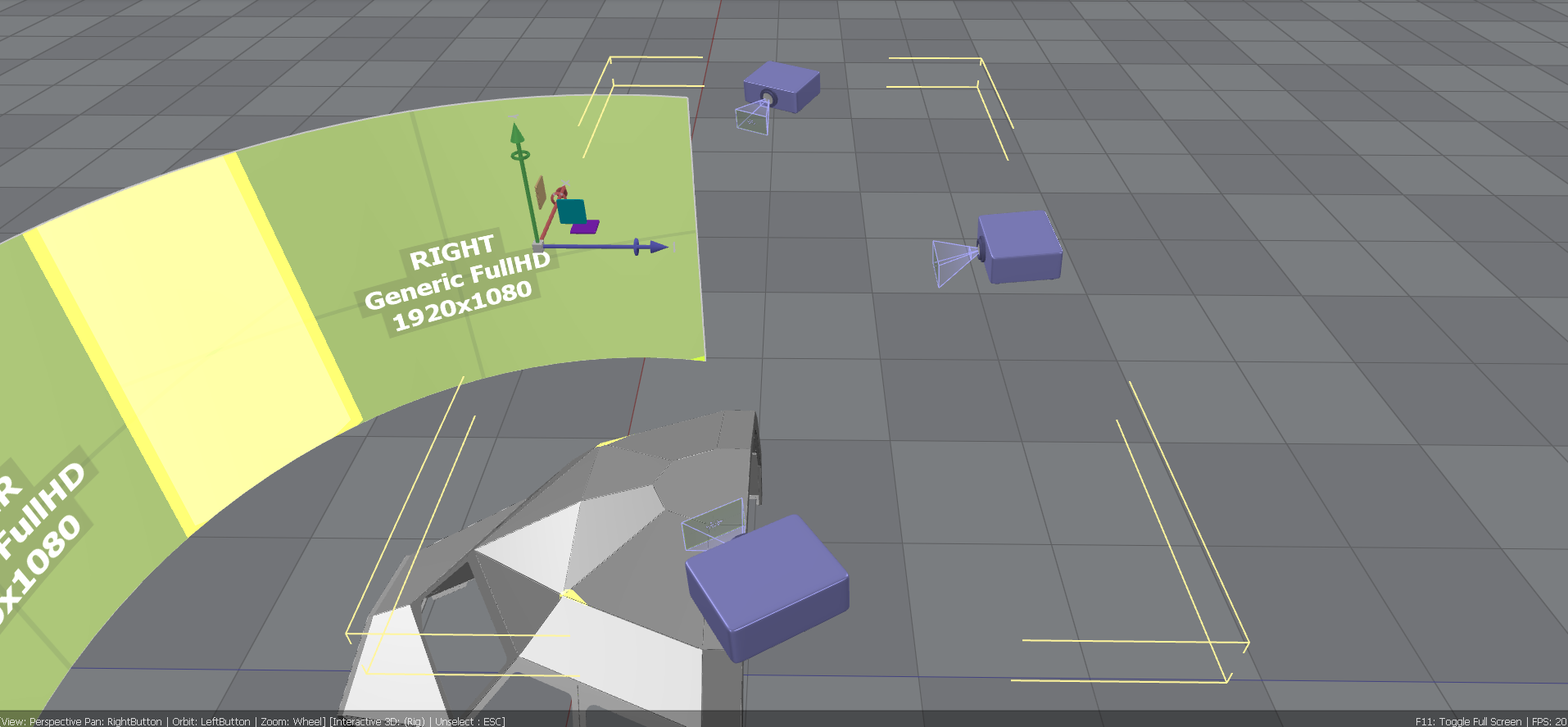
The rig's 3D position and orientation are applied to all projectors. Projectors can also be individually moved and oriented relative to the rig.
Settings can be applied to all projectors in the rig or individually per projector.
After the array is created, the rig properties can be edited using the Rigs UI control panel.
Linear array rig
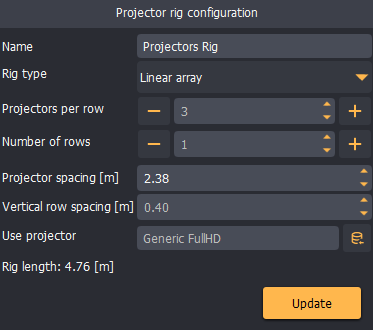
- Choose the Linear array rig when projectors are organized in a straight row.
- Select the projector vendor and type.
- Select the number of projectors per row and the number of rows.
- Use the projector spacing to set the distance between projectors and between rows.
Curved array rig
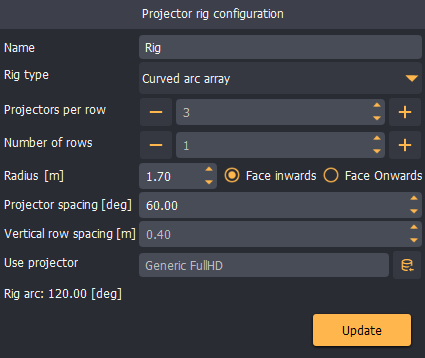
- Choose the Curved array rig when projectors are organized in a circular arc around a center point.
- Select the projector vendor and type.
- Select the number of projectors per arc row and the number of rows.
- Define the arc radius and the angle between two projectors.
- Define the projectors' orientation (inward or outward).
- Use the projector spacing to set the distance between rows.
Configuration
The rigs control panel is the main configuration panel for adding, removing, and configuring projector rigs in the 3D scene.
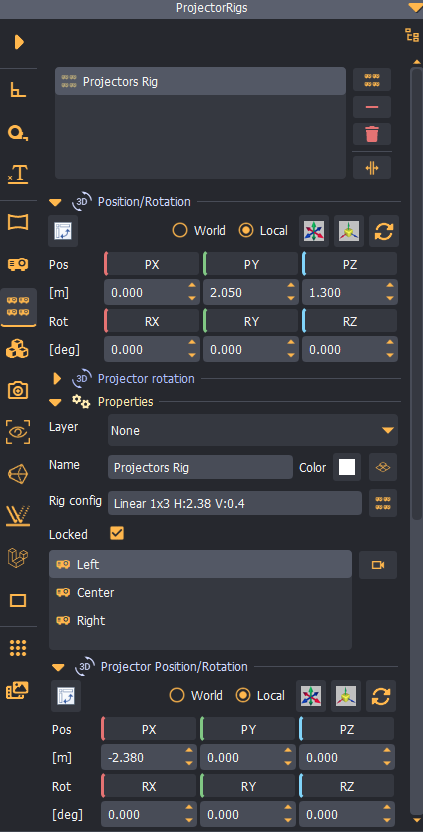
Typical rig workflow
- Create a new linear or curved rig.
- Select the projector type.
- Refine the rig: spacing, radius, arc, or rotation in the properties panel.
- Change the number of projectors until the layout covers the projection surface.